what's new in 1.7
Budget Bestie has a new look in 1.7. Your budgeting routine is the same: stuff your envelopes, record what you spend and adjust as you go.
This page describes version 1.7. If you are still on 1.6, some screens and button positions will differ. Check your app version or update.
find the things you use every day
Section titled “find the things you use every day”| What you want to do | Where it is in 1.7 |
|---|---|
| Check what is left | envelopes, then tap an envelope for its balance and transactions. |
| Record a purchase | +, add transaction, in the tab bar. The save button sits above the keypad. |
| Cover an overspent envelope | move money below the envelope’s warning, or on its balance card. |
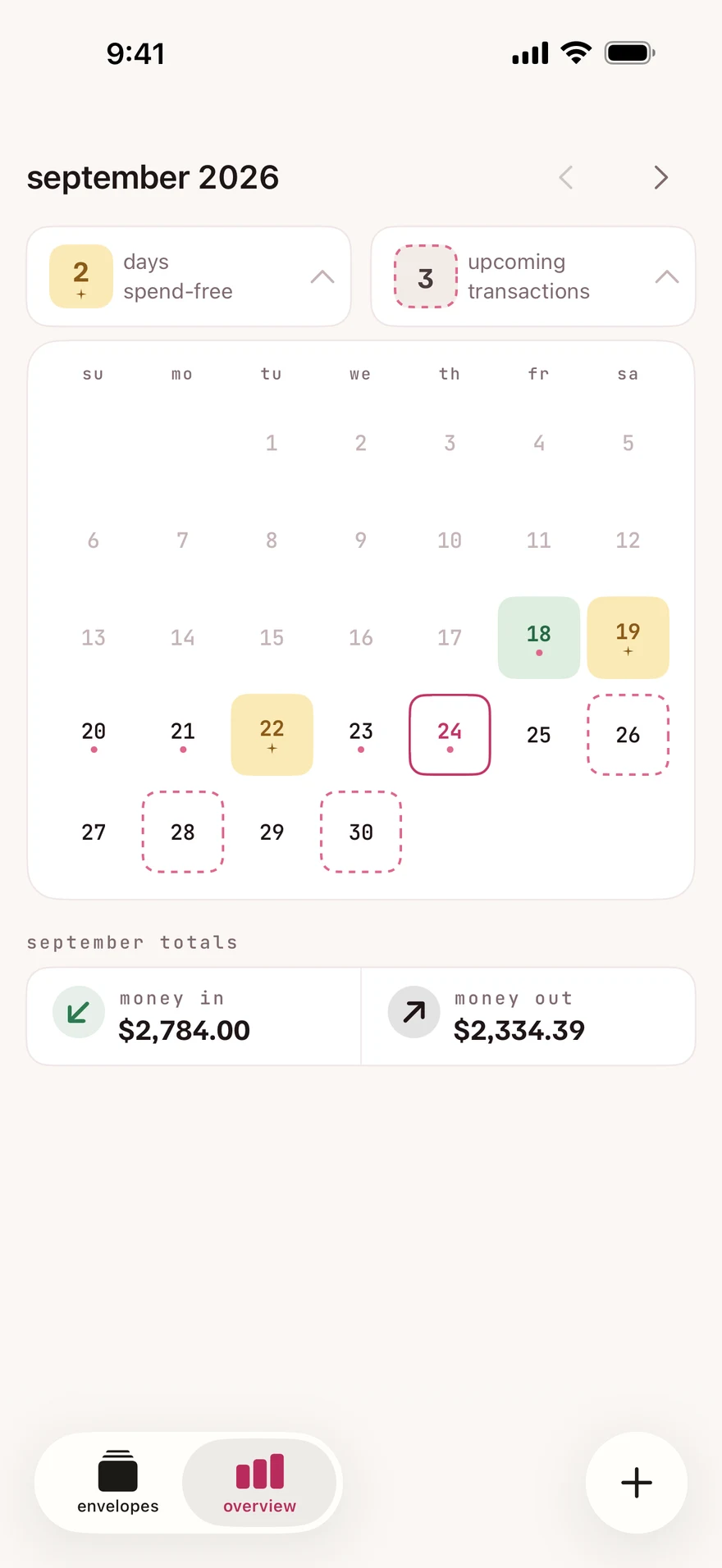
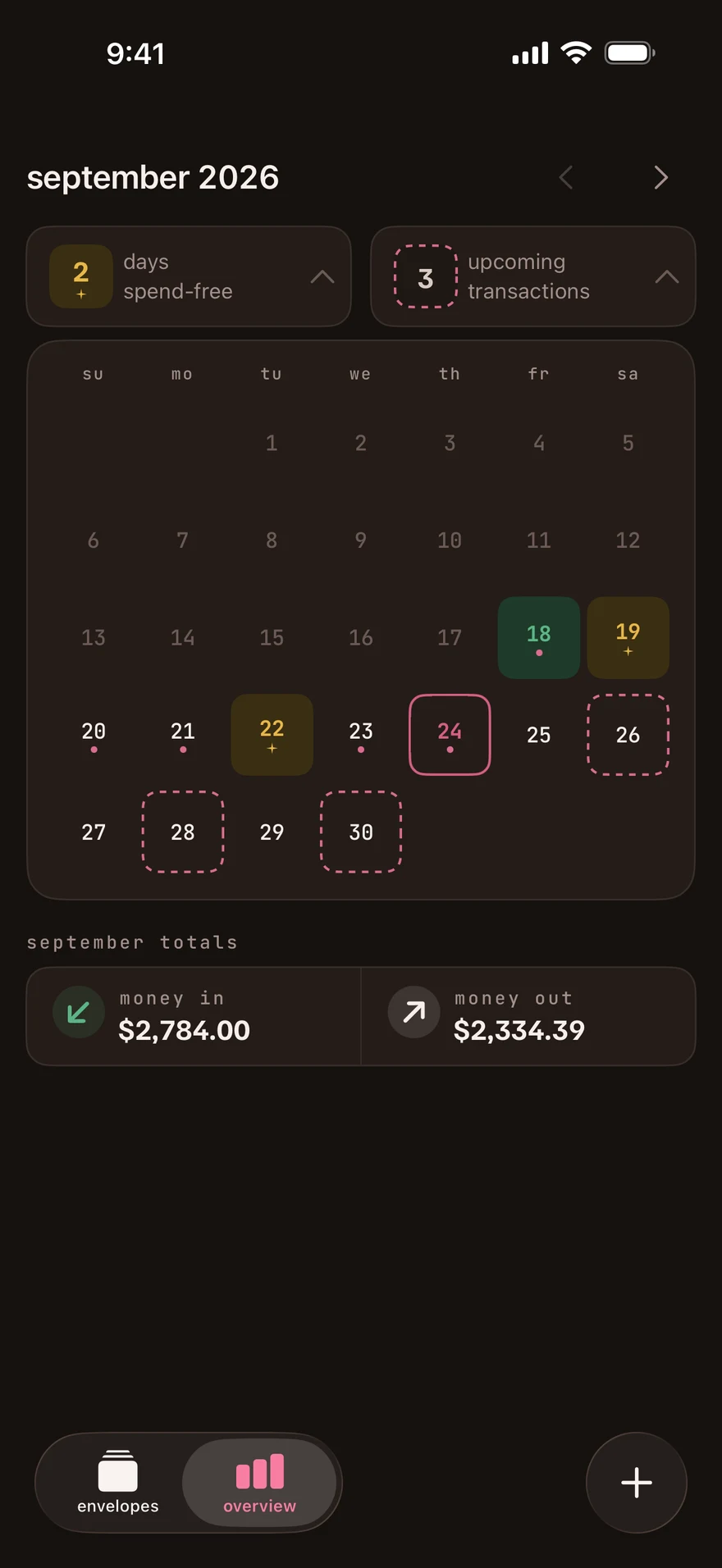
| See your calendar | overview. A gold ✦ means spend-free. Green marks a stuffing day. |
| Record a paid bill | overview, then upcoming transactions. |
| Open settings | envelopes, then the … menu, then settings. |
your envelopes and stuffing
Section titled “your envelopes and stuffing”On stuff your budget, each envelope shows what it has now, what you are adding and what it will have after. Stuff your envelopes.
Adding a transaction shows its effect on the envelopes you choose. An overspent envelope has a move money button that fills in the amount needed to return it to zero. Cover overspending.
The quick record widget shows what is left in your favorite envelopes. Set up a widget.
your calendar and bills
Section titled “your calendar and bills”Spend-free days get a gold ✦. Stuffing days are green, unless the day is also spend-free. Upcoming bills have a dashed outline. The upcoming list opens with the total still to record before your next stuffing. Read the calendar.
setup, settings and your plan
Section titled “setup, settings and your plan”Setup now shows your progress from the first question. You can choose your currency during setup or in currency settings. Make your first budget.
In settings, the profile card holds your account details and sign-out. manage on your current plan opens subscription management in the app. Find your plan.
You can also turn marketing emails on or off under emails. Change that preference.
fixes included
Section titled “fixes included”- The subscription screen no longer flickers when the app cannot check your plan.
- A new theme color appears on your envelopes when you change it.
- The upcoming transactions screen no longer jitters.
- Spend-free day counts use the same days as the calendar.
- The quick record widget keeps its content with four or more favorite envelopes.
- Warning text can show its last line.
need help after updating?
Section titled “need help after updating?”Contact support with your app version, what you tried and what happened. If a number looks wrong, tell us which screen shows it.
Checked against the app on .
did this page help?
still stuck? a real person answers.
Email us and someone from the team replies. From the app, go to settings thencontact support: it adds your user ID, so we can help faster.