record income
Record money when it arrives, so the app includes it in your budget.
add income
Section titled “add income”- Tap +, add transaction, in the tab bar.
- At the top, tap income.
- Type the amount you received.
- If the money arrived on another day in your current budget, tap the date to change it.
- If you want a note, tap what was it for?.
- To leave the money ready for your next stuffing, tap add income.
The keypad fills the cents first. To enter $100.00, type 1, 0, 0, 0, 0.
put the income straight into one envelope
Section titled “put the income straight into one envelope”Before you save, tap stuff into an envelope and choose the envelope. The save button changes to “add income to” followed by the envelope’s name. Tap that button to save.
For example, if you receive $50 for groceries, you can put that income directly in groceries. You do not need a separate stuffing for it.
what you’ll see
Section titled “what you’ll see”After saving, the app shows income added. If you chose an envelope, its balance increases. Otherwise, the money waits outside your envelopes, ready to stuff.
The add-transaction screen starts with expense selected. Choose income at the top before entering the money you received.
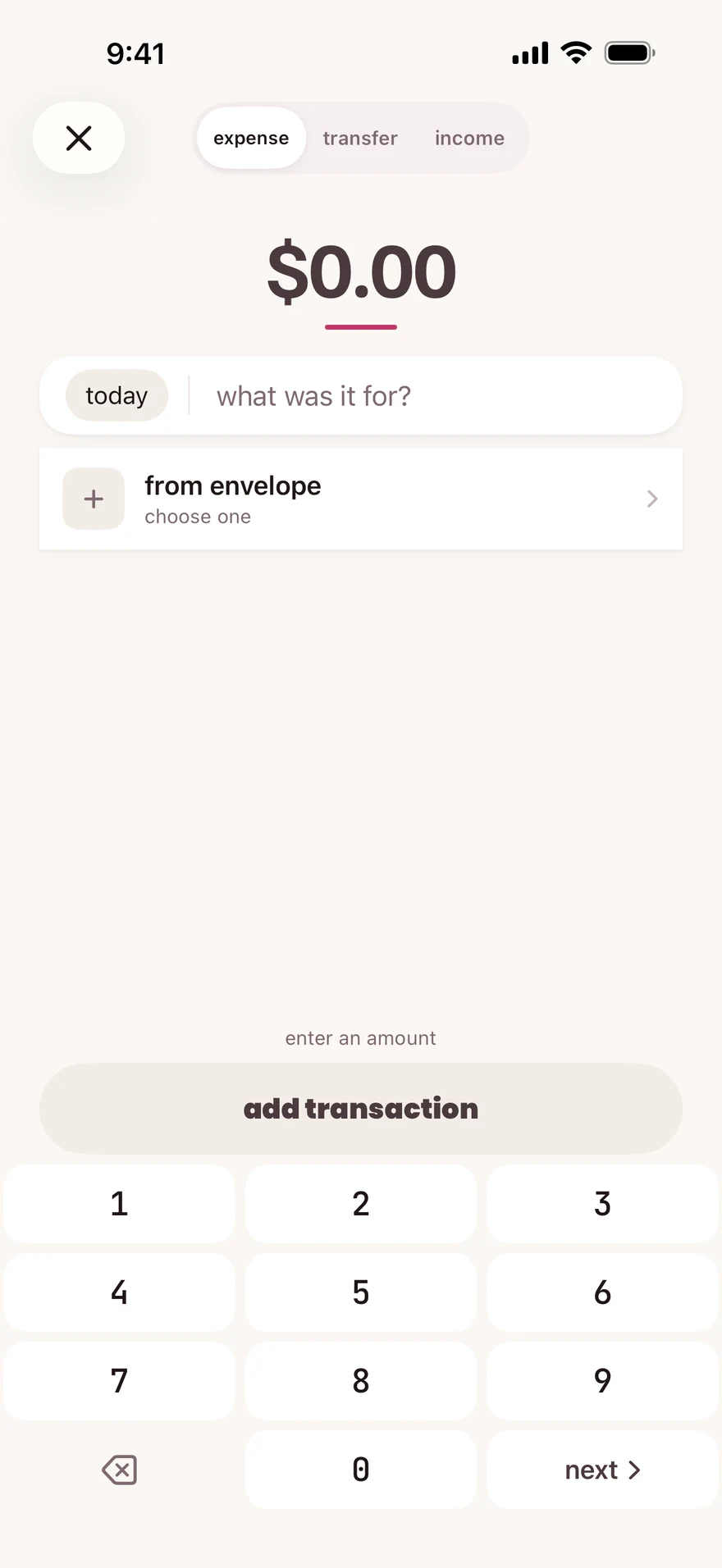
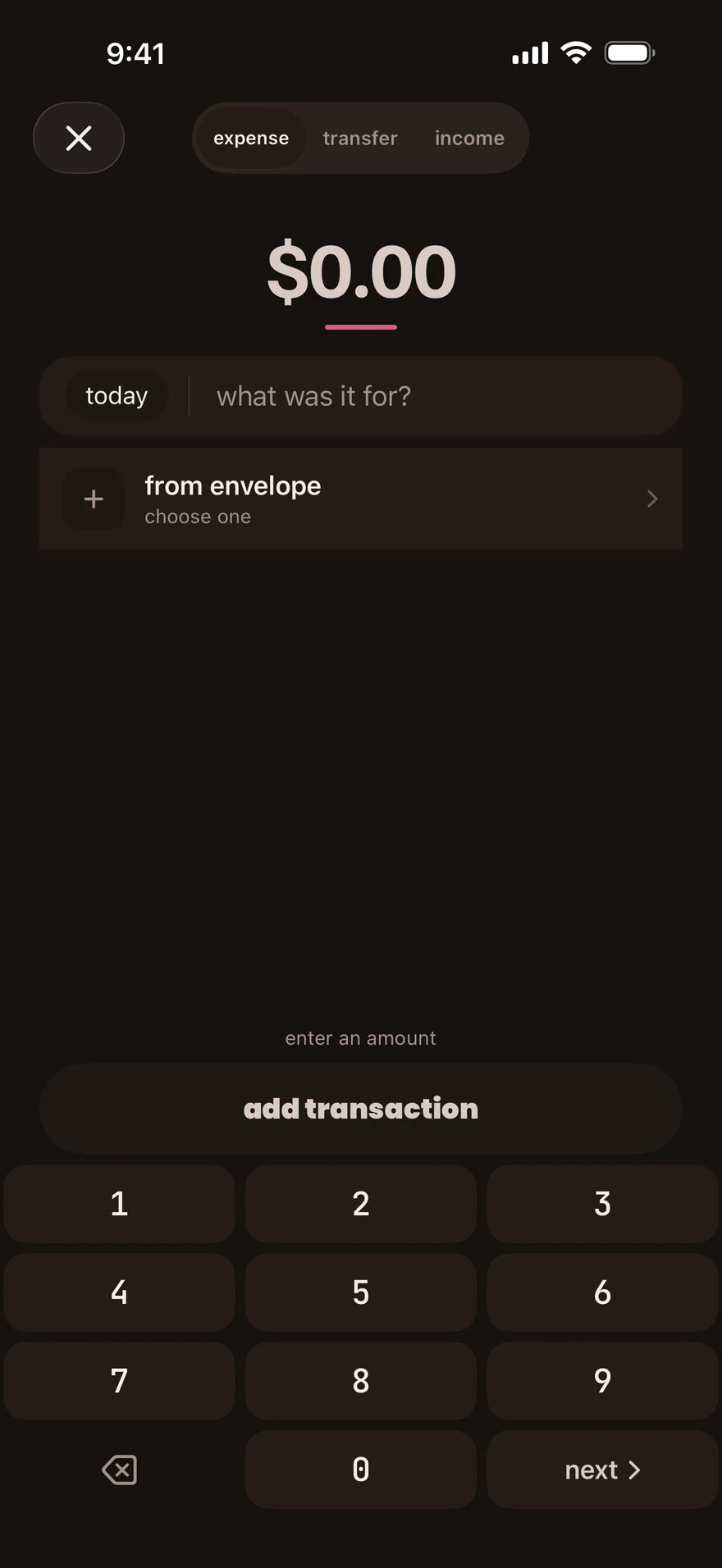
When income has no envelope, the save button also says ready to stuff when you budget next. On envelopes, the card with unstuffed and stuff now is where to start dividing that money between envelopes.
next step
Section titled “next step”Stuff your envelopes when you want to divide the income. If you recorded the wrong amount, edit the transaction.
Checked against the app on .
did this page help?
still stuck? a real person answers.
Email us and someone from the team replies. From the app, go to settings thencontact support: it adds your user ID, so we can help faster.