2. your first budget, step by step
Your first budget gives the money you have today a place in your envelopes.
If you already have a budget in the app, use stuff your envelopes for your next budget instead.
before you start
Section titled “before you start”Have the total you want to track ready. Include the money in your bank accounts and any wallet cash you budget with. If you already stuff physical envelopes, include that money in the total once.
The app asks about your name, preferences, currency and budgeting experience before envelope setup. Use continue to move through those questions. You will also sign in and see the plan offer. Sign-in help and plan and trial help explain those screens.
make your first budget
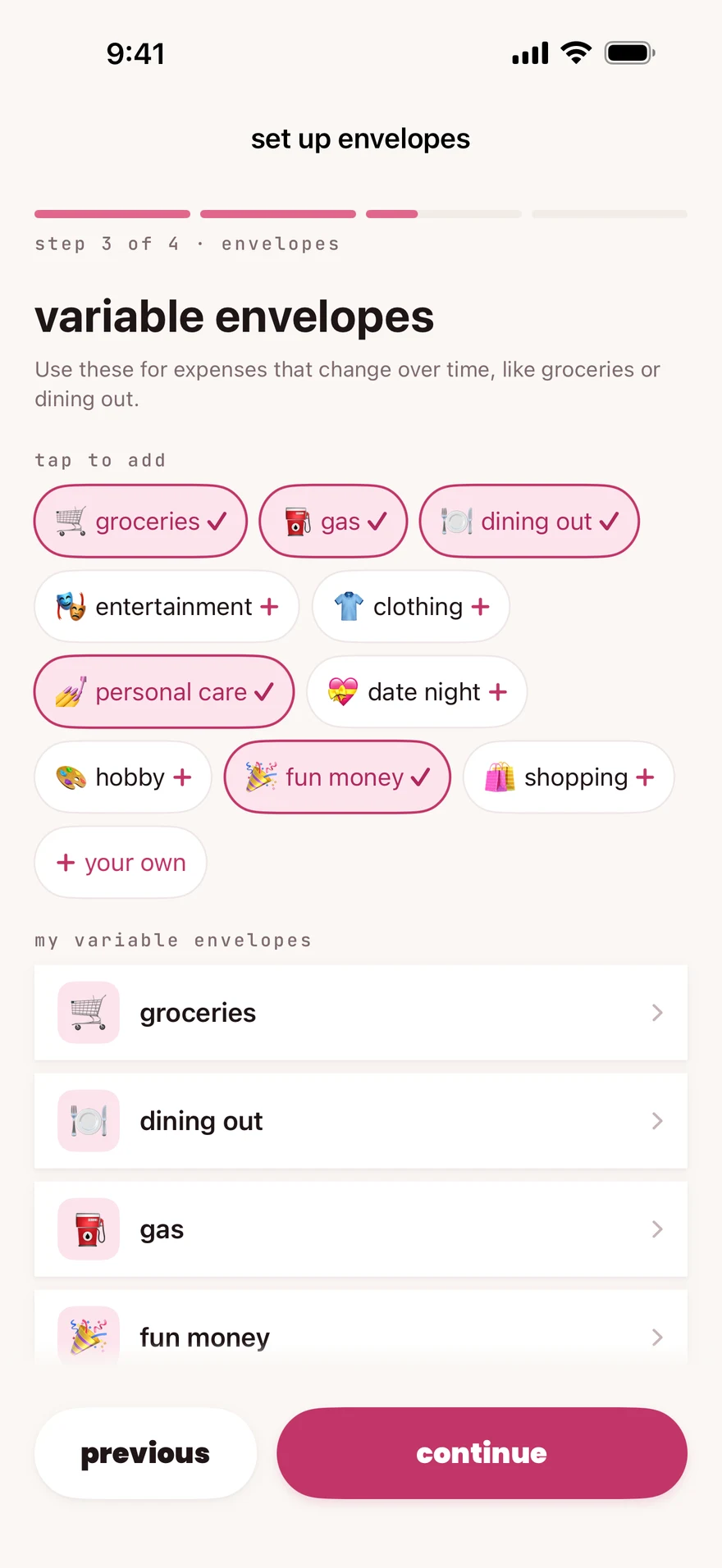
Section titled “make your first budget”- During envelope setup, choose envelopes for the things you want to track. You can add or edit them later.
- Choose how often you want to budget.
- Choose your next budgeting day.
- Enter the total money you want to track, including anything already in your envelopes.
- On the stuffing screen, tap an envelope.
- Type the amount you want that envelope to hold.
- Tap next on the keypad to move to the next envelope.
- Repeat until the amount left to stuff is exactly zero.
- Tap the selected envelope again to close the keypad.
- Tap stuff it.
- On the finish screen, tap let’s go.
If you already entered money held in physical envelopes, that money is part of your total. Do not add it to the total a second time.
what you’ll see
Section titled “what you’ll see”The stuffing screen shows the amount for each envelope and the total left to stuff. If there is money left to stuff, put it in an envelope. If you have put in too much, reduce an amount before saving.
During envelope setup, the app offers envelope suggestions. Choose the ones you need and add your own when something is missing.
The finish screen shows your envelopes, the amount stuffed and your next stuffing date. The plan screen may appear before you enter the app.
next step
Section titled “next step”Checked against the app on .
did this page help?
still stuck? a real person answers.
Email us and someone from the team replies. From the app, go to settings thencontact support: it adds your user ID, so we can help faster.