read the calendar and money in and out
Use overview to see what happened on a day and check your money in and out for the month.
- Tap overview.
- Use the arrows beside the month to choose a month.
- Tap an available day to see its transactions below the calendar.
what the marks mean
Section titled “what the marks mean”| Mark | Meaning |
|---|---|
| Gold tile with a ✦ | A spend-free day. |
| Small dot | Spending from an envelope that ends a no-spend day. |
| Green tile | The last stuffing day or your next planned stuffing day. If the day is also spend-free, gold takes priority. |
| Dashed outline | An upcoming bill. |
| Ring | Today. |
| Faint day number | A day outside the calendar’s available budget dates. You cannot select it. |
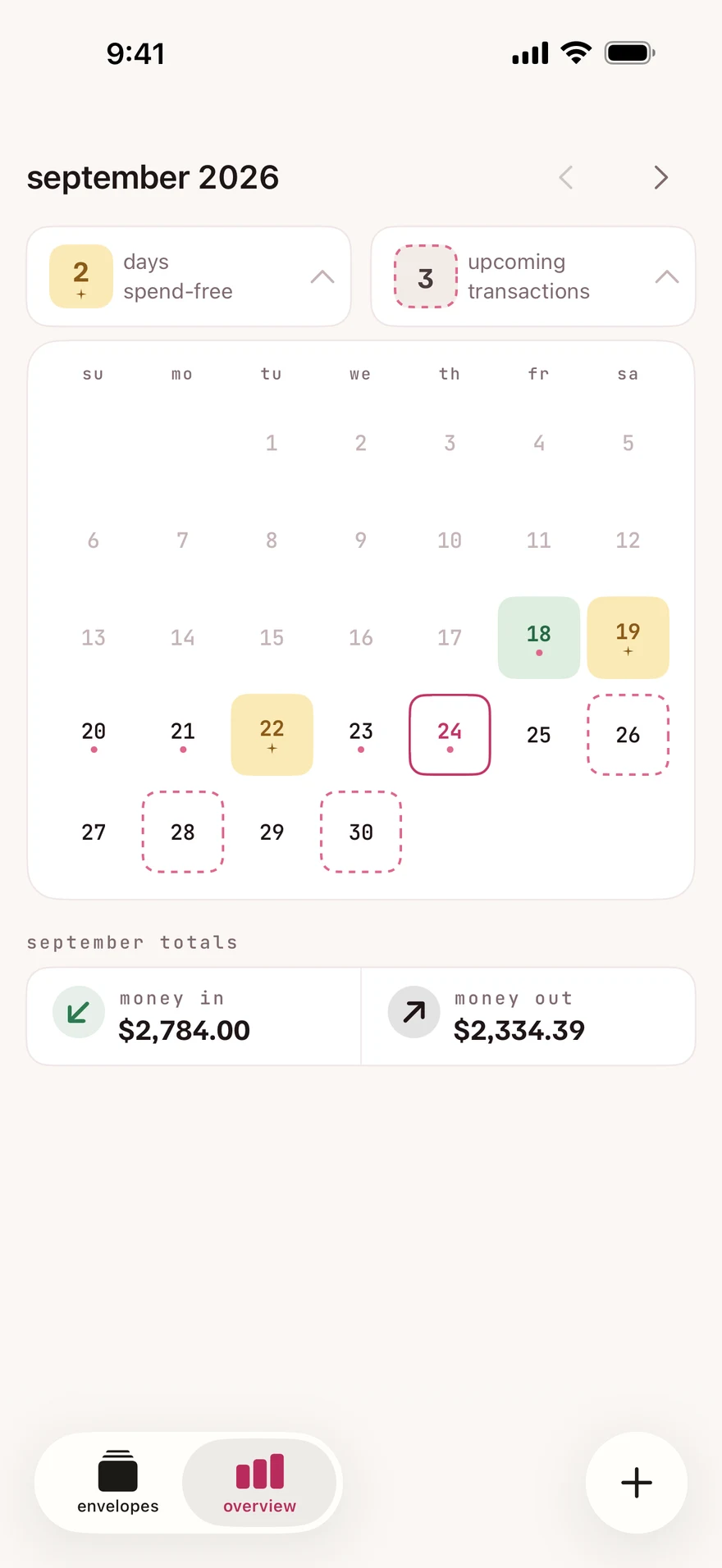
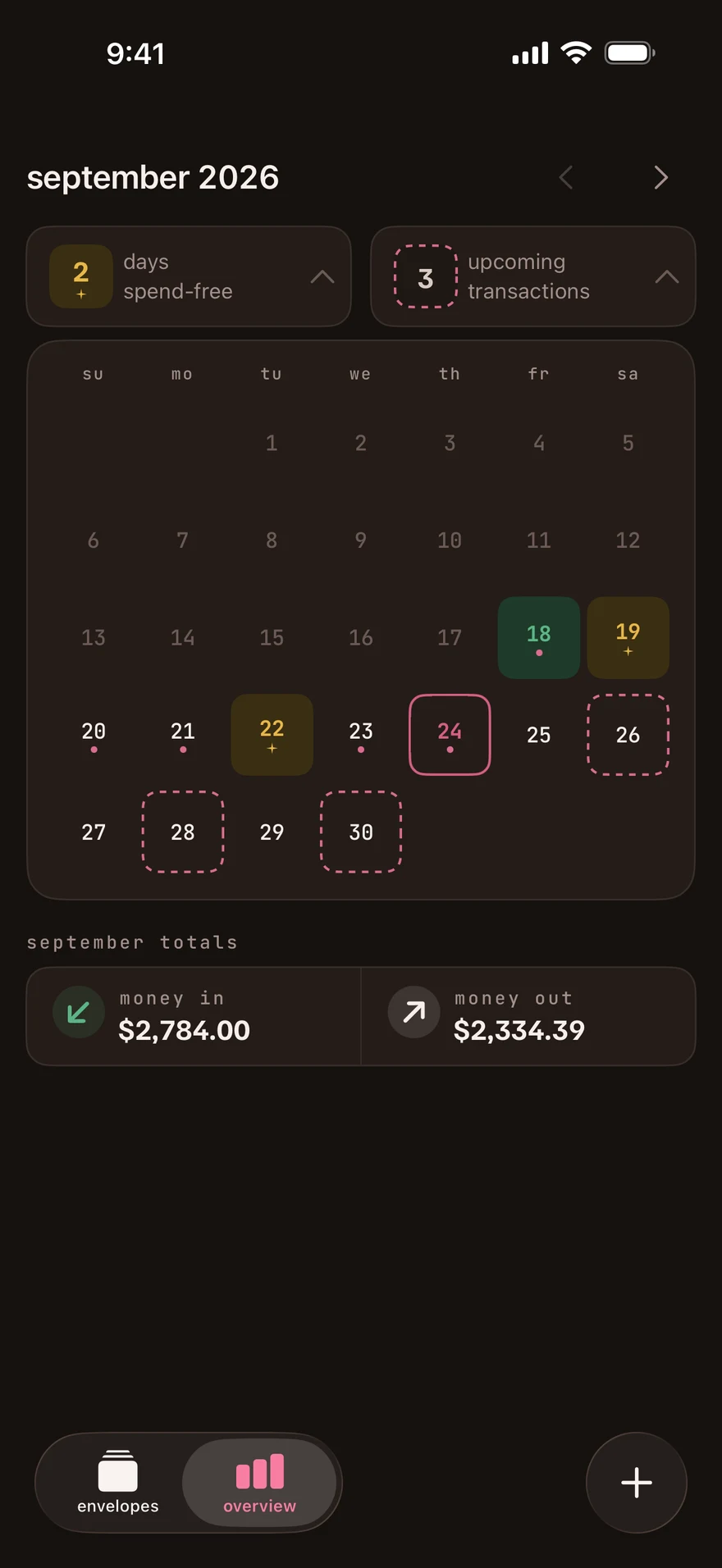
When you select a day, its highlight covers the usual tile color.
A spend-free day can still have transactions. Income, stuffing and transfers do not end one. Spending only ends one when it comes from an envelope you chose to count. Change those choices.
use the two boxes above the calendar
Section titled “use the two boxes above the calendar”Tap days spend-free, beside the gold ✦, for the month’s no-spend days. Tap upcoming transactions, beside the dashed outline, for the bills waiting to be recorded.
An upcoming bill has not left its envelope yet. Record it when you pay it.
see the month’s money in and out
Section titled “see the month’s money in and out”- On overview, tap the money in and out summary below the calendar.
- On money in/out, use the month arrows if you want another month.
- Tap the money-in bar or total to show income, or the money-out bar or total to show expenses.
- Tap the same bar or total again to show both income and expenses.
The monthly totals describe income and expenses for the calendar month. They can differ from a budget recap if your budget starts partway through that month.
Your spend-tracking choices affect spend-free days. They do not hide expenses from the month’s spending total.
next step
Section titled “next step”Edit or delete a transaction if something in the list needs correcting.
Checked against the app on .
did this page help?
still stuck? a real person answers.
Email us and someone from the team replies. From the app, go to settings thencontact support: it adds your user ID, so we can help faster.